> ## Documentation Index
> Fetch the complete documentation index at: https://docs.disqoai.com/llms.txt
> Use this file to discover all available pages before exploring further.
# Overview
> Learn how to connect and manage third-party integrations in disQo.ai
Integrations in disQo.ai allow you to seamlessly connect your favourite tools and platforms, enabling you to sync knowledge, automate workflows, and streamline your processes.
## Accessing Integrations
Use the button in the Knowledge Base to connect and import data from supported platforms.
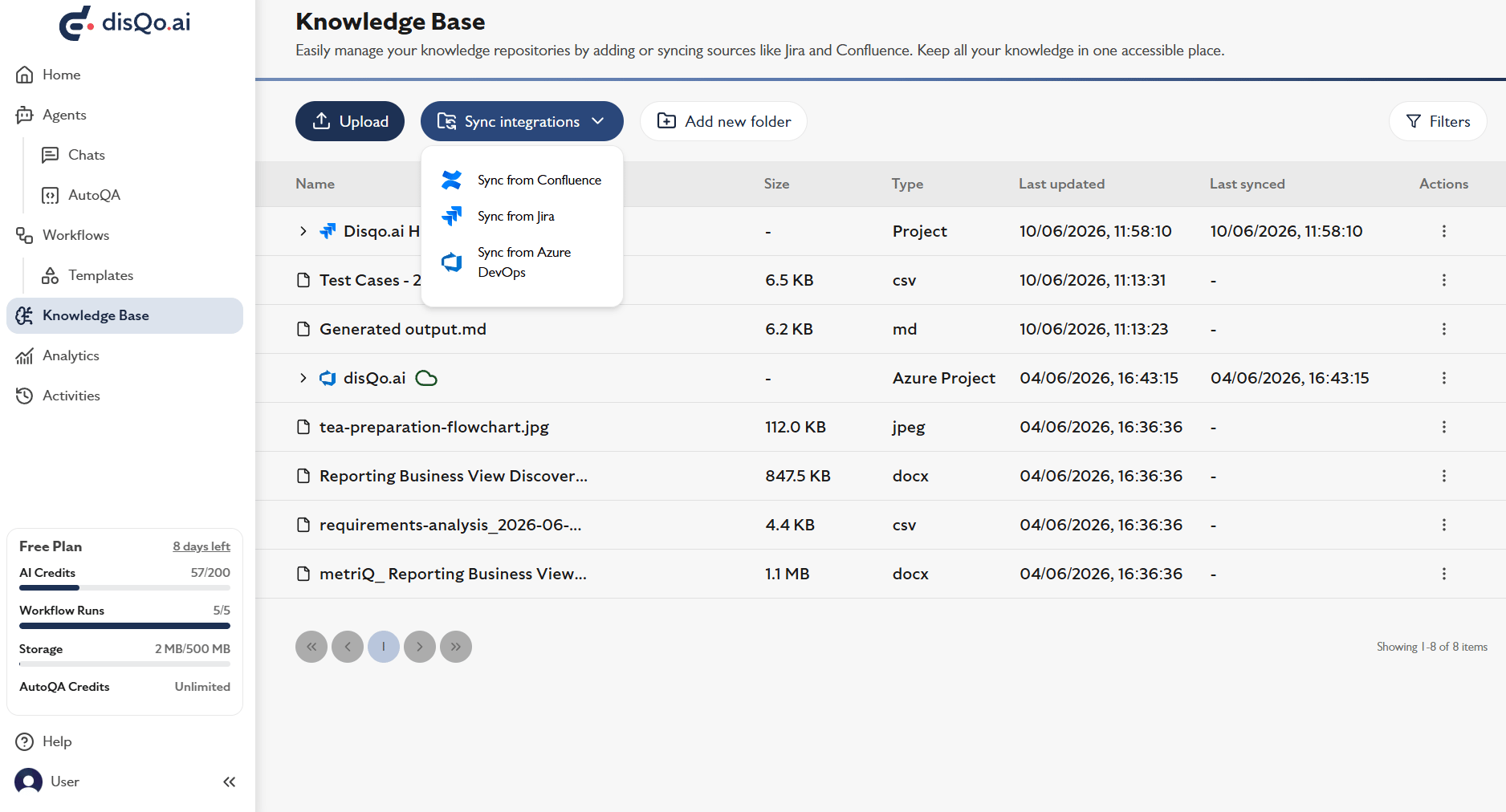 Use the button in the Knowledge Base to connect and import data from supported platforms.
Go to > to manage your connected integrations at any time.
Use the button in the Knowledge Base to connect and import data from supported platforms.
Go to > to manage your connected integrations at any time.
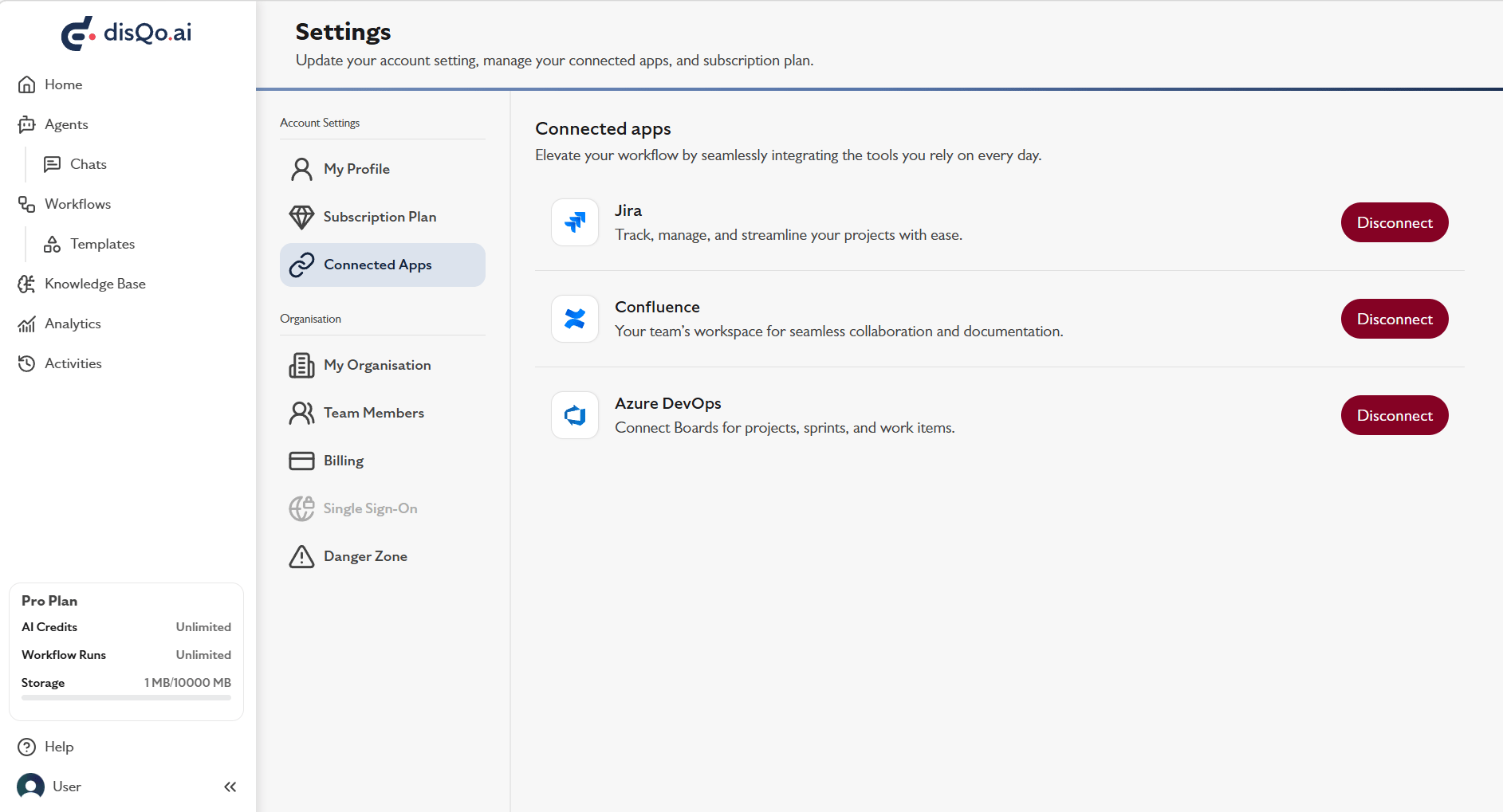 Go to > to manage your connected integrations at any time.
## Currently Supported Integrations
| Integration | Description |
| ------------ | ------------------------------------------------------------------- |
| Jira | Read and write back to your project board. |
| Azure DevOps | Read and write back to your project board. |
| Confluence | Your team's workspace for seamless collaboration and documentation. |
## Connecting Integrations
* Click Connect in the Connected Apps page or during Knowledge Base sync.
* Follow the prompts to authorise and link your account.
* Once connected, you can sync data and use it in your workflows and automations.
Go to > to manage your connected integrations at any time.
## Currently Supported Integrations
| Integration | Description |
| ------------ | ------------------------------------------------------------------- |
| Jira | Read and write back to your project board. |
| Azure DevOps | Read and write back to your project board. |
| Confluence | Your team's workspace for seamless collaboration and documentation. |
## Connecting Integrations
* Click Connect in the Connected Apps page or during Knowledge Base sync.
* Follow the prompts to authorise and link your account.
* Once connected, you can sync data and use it in your workflows and automations.
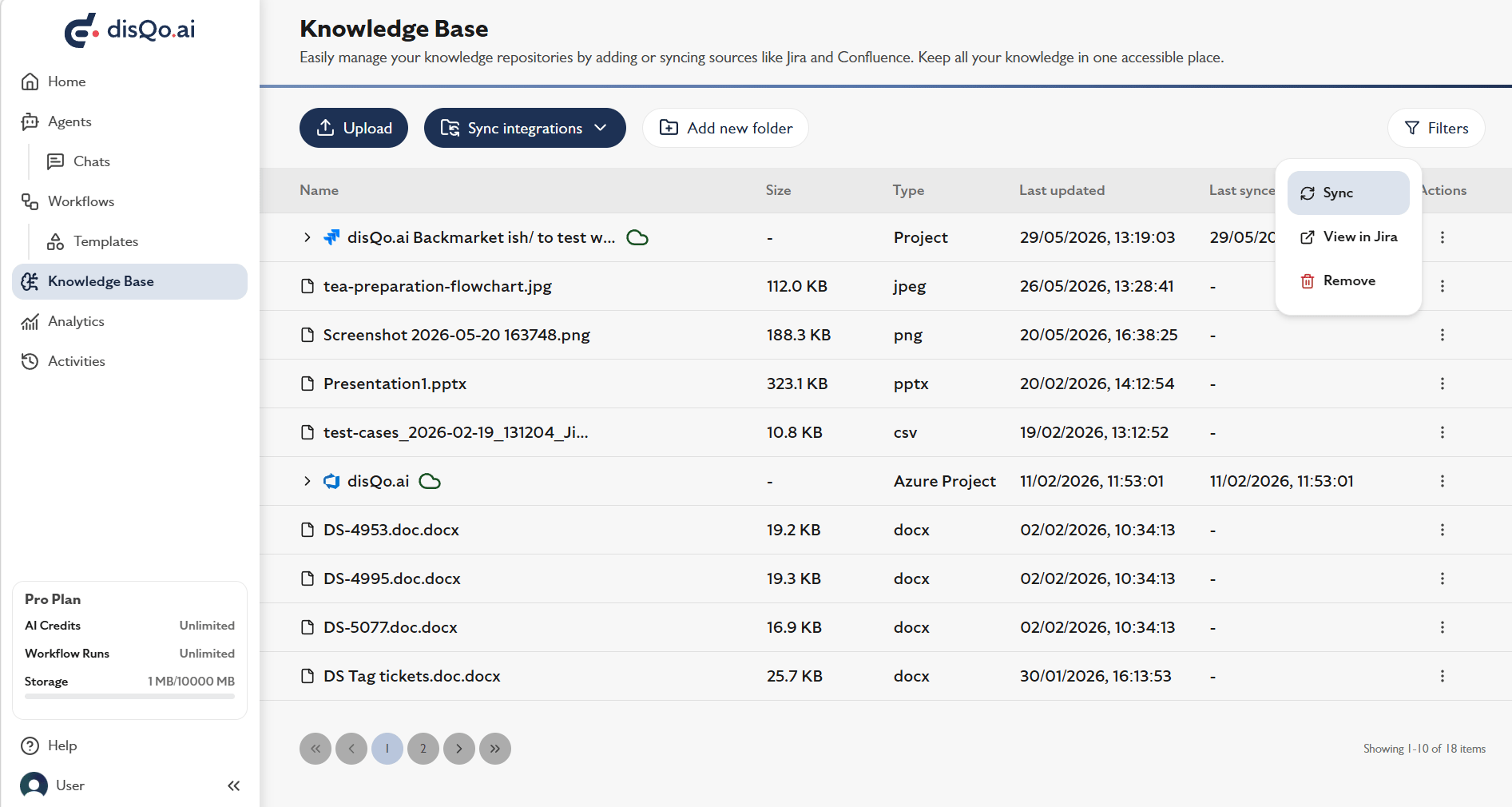 You can disconnect or manage your integrations at any time from the Connected Apps settings page.
More integrations are coming soon! If you need a specific integration, please to request it.
You can disconnect or manage your integrations at any time from the Connected Apps settings page.
More integrations are coming soon! If you need a specific integration, please to request it.